
Get Access
Follow these steps to create a sandbox account and obtain App Management access for your application within the z-PAX sandbox environment.
Create a Sandbox Account
-
Navigate to the sandbox portal:
https://sandbox.myzpax.com -
Click Sign In or Create Account, and then Create Account.
-
Complete the registration form using your development or organization email address.
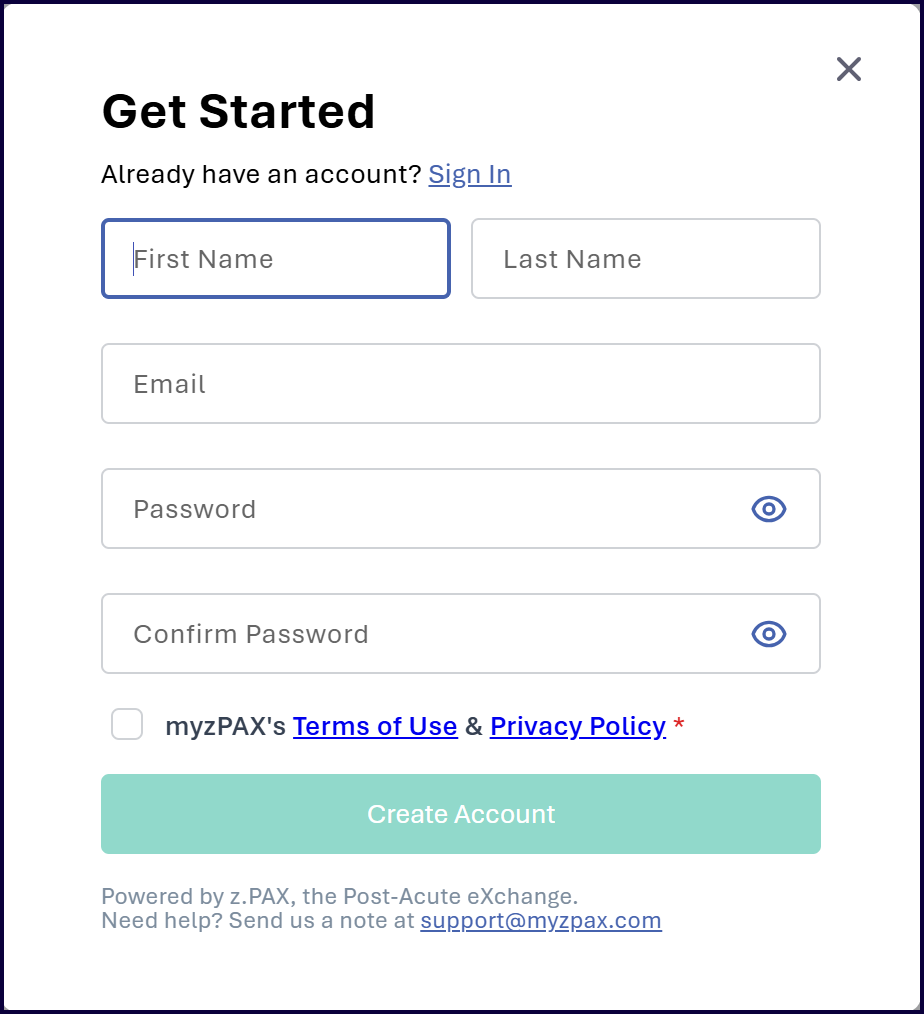
-
Log in to confirm successful account creation.
Request App Management Access
Once your sandbox account is created, request App Management access by sending an email to the myzPAX Developer Program.
Required Email Details
Include the following information in your email:
- Email address of development owner.
- Display name of your application.
This request enables the z-PAX team to:
- Provision your application in the sandbox environment.
- Enable App Management access for your account.
- Generate credentials required for SSO integration.
Receive Application Credentials and Access
After your request is processed, you will receive the following:
A. Over Email
- Client ID and Client Secret pair for your application
These credentials are required for Single Sign-On (SSO) integration. The developer receives an email containing a one-time secure link that, when accessed, displays the Client ID and Client Secret, which must be securely documented and stored in a protected location.
B. In the Sandbox Environment
-
Access to the App Management page
This allows you to:- Create and manage application tiles
- Configure application settings
- Manage user access
- Configure client authentication and redirect behavior