
Quick Start
Each application tile in the myzPAX Portal requires specific configuration parameters to ensure proper display and functionality within the dashboard. This section serves as the main entry point for application integration, testing, and validation.
Access the Sandbox Environment
- Navigate to the sandbox access point.
- Log in using your assigned developer or administrator credentials.
- Once logged in, you will be directed to the myzPAX Portal dashboard.
For a full overview of the dashboard layout and tile placement rules, refer to myzPAX Developer Portal Dashboard.
Configure Required Fields
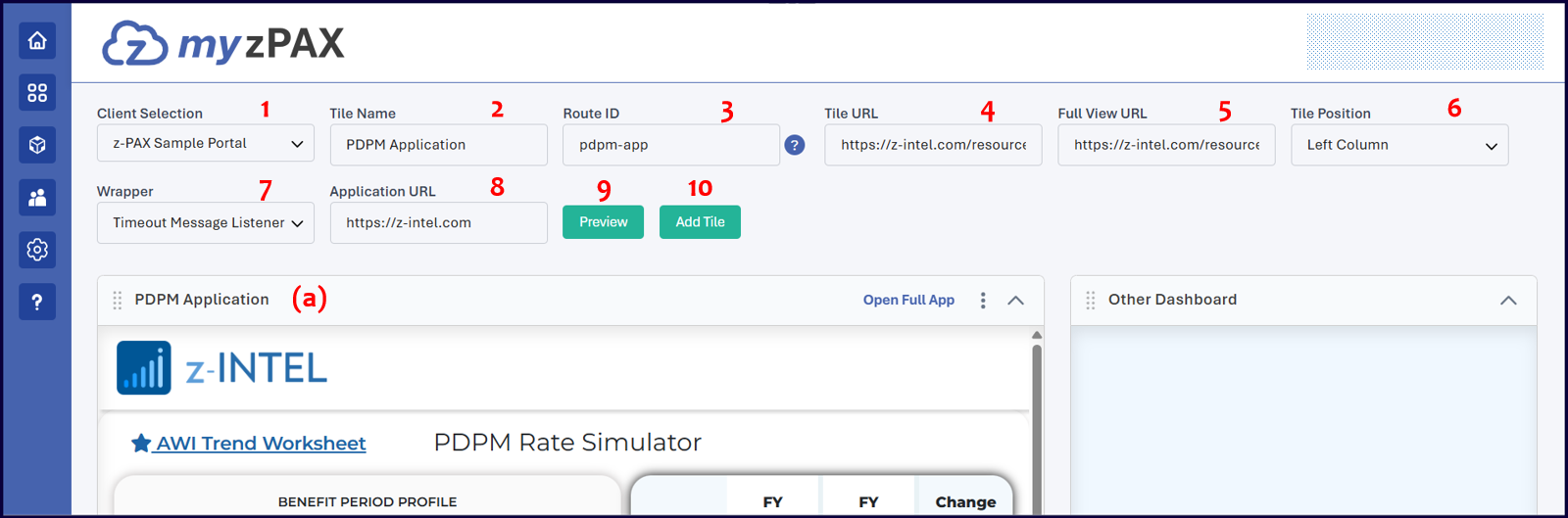
Fill in the following fields when setting up a tile:
-
Tile Name: Specifies the exact name displayed on the tile. This label appears to end users when navigating to your application.
-
Route ID: Specifies the unique identifier used to reference your application within the URL.
Example: If the Route ID issample-app-route, the full view URL becomes:
https://sandbox.myzpax.com/sample-app-route -
Tile URL: Specifies the initial URL loaded within the tile, embedded as an iframe.
-
Full View URL: Specifies the URL that provides end users access to the full version of the application in a full-screen view. Ensure that this URL is both publicly accessible and secured.
-
Tile Position: Indicates the column placement of the tile within the portal layout – either the Left or Right column.
For tile placement rules and layout guidelines, refer to myzPAX Developer Portal Dashboard. -
Wrapper: Select Timeout Message Listener to allow the embedded application to communicate with myzPAX.
-
Application URL: Defines the primary URL embedded within the tile as an
iframe. This URL should display the main content relevant to the tile view.
Applications that include a restrictedX-Frame-Optionsheader cannot be embedded within a tile.
Preview and Publish
- Click Preview to display a preview of the application in the tile.
- Click Add Tile to publish the tile to the myzPAX home page.
Once published, application behavior can be validated using Tile View and Full View as described in Application View Modes.